Asset Index — Configure & iModel Console
The Configure Asset Index tab and its integrated iModel Console provide administrative tools to define, refine, test, and persist unified asset breakdown rules across digital twin models.
Unlike single-aspect evaluation models, the Asset Index capability extracts and unifies physical component hierarchies across four distinct navigation dimensions: Location Breakdown Structure (LBS), System Breakdown Structure (SBS), Classification Breakdown Structure (CBS), and Work Breakdown Structure (WBS).
Access and Entitlements
- Select an active iTwin and iModel in the application header so the configuration builder can load schema metadata.
- Editing, saving, and creating new configurations requires the Author role/entitlement. If you possess read-only privileges, the configuration interface operates in view-only mode.
- The configuration selector in the page header controls which asset index configuration is active for browsing, harvesting, and reporting.
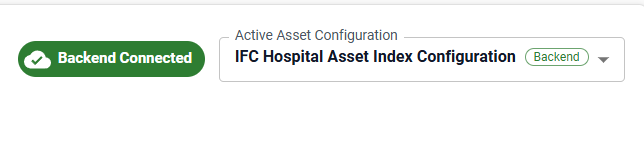
Configuration Storage Modes
The Asset Index supports two persistence modes:
| Storage Mode | Badge | Description |
|---|---|---|
| Backend Service | Backend (Green) |
Persisted directly to the central PostgreSQL digital twin database service. Configurations are accessible across all users and team members within the iTwin. |
| Local Storage | Local (Grey) |
Operates in fallback mode when the central backend database service is offline or unauthenticated. Configurations are saved within the browser's local storage. |
Managing Asset Index Configurations
Select an active configuration
Use the Active Asset Configuration dropdown menu in the page header to switch between existing configurations. Selecting a configuration immediately populates the builder with its metadata, LBS, SBS, CBS, and WBS breakdown parameters.
Create a new configuration
- Open the Active Asset Configuration dropdown.
- Select + Create New Configuration (requires Author entitlement).
- The application generates a default unified configuration template initialized with standard spatial levels, system classes, and taxonomy parameters.
- Enter a custom Configuration Name and Description.
- Select Save Configuration to commit the new configuration.
Reset to defaults
Select Reset to Defaults at any time to discard uncommitted edits and reset the builder fields to default values.
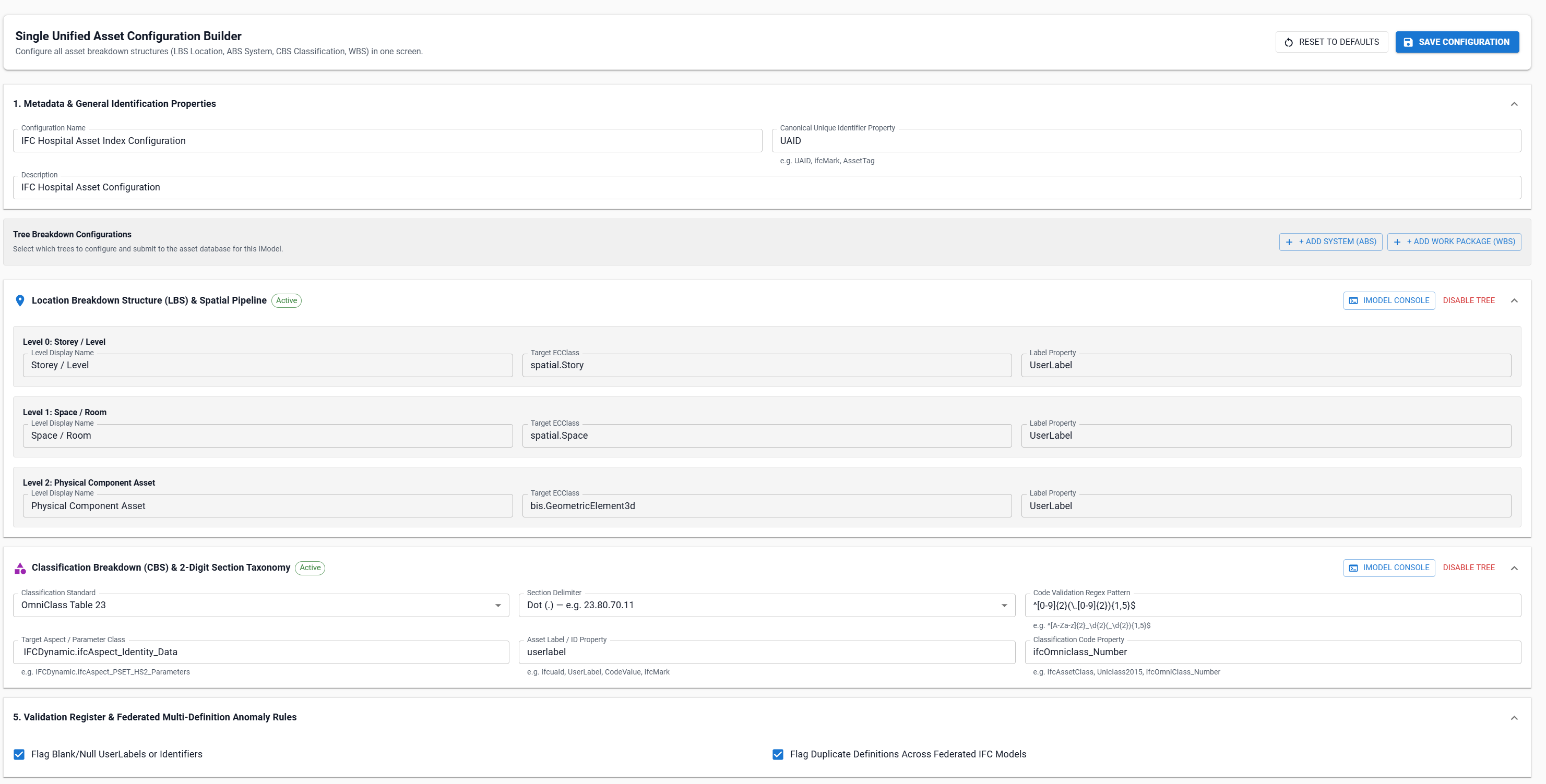
Core Metadata and Unique Identification
Section 1 of the Configuration Builder establishes how physical elements are uniquely identified and indexed:
1. Configuration Name and Description
Provide a clear, human-readable name (e.g. HS2 Mainline Asset Index v2.1) and optional description summarizing the project information requirement.
2. Canonical Unique Identifier Property
Specifies the primary property used to track unique physical assets across revisions and federated models:
uniqueIdProperty: Primary identifier key (e.g.UAID,ifcMark,AssetTag,CodeValue).fallbackProperties: Ordered fallback properties evaluated when the canonical unique identifier is null or empty (e.g.UserLabel,ECInstanceId).
3. Property Whitelist for Lean Storage
To optimize database storage and network payload efficiency, the Asset Index stores physical asset records using a lean property whitelist:
- Enter property names (e.g.
SystemName,AssetClass,Manufacturer,ModelNumber) into the whitelist. - Select Add to register new properties.
- Use the × chip action to remove non-essential properties.
- Non-whitelisted element properties are excluded during harvesting to maintain high query throughput.
Interactive iModel Console & ECSQL Inspector
The iModel Console is an interactive diagnostic app built directly into the Configuration Builder. It enables authors, information managers, and schema engineers to inspect generated ECSQL pipeline queries and execute live ECSQL queries against the connected iModel.
Launching the iModel Console
In the Configuration Builder, select the iModel Console button located in the header of any tree breakdown section (LBS, SBS, CBS, or WBS). The console opens pre-configured for that specific breakdown pipeline.
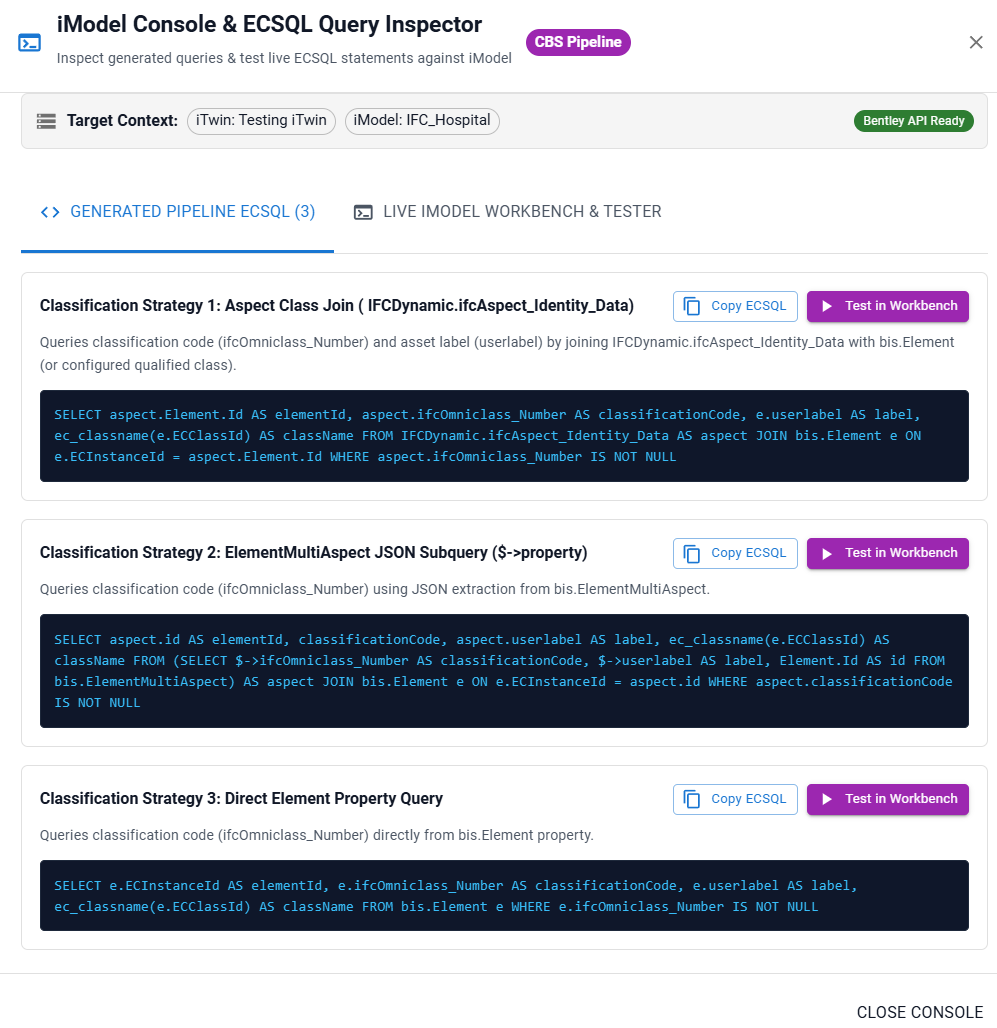
iModel Console Modes
The console features two primary operation tabs:
Tab 1: Generated Pipeline ECSQL
Displays automatically generated ECSQL query statements derived from your active configuration rules:
- Query Inspection: Review exact ECSQL syntax generated for each spatial tier, system membership join, or classification aspect query.
- Copy ECSQL: Select Copy ECSQL to copy the statement to your clipboard for external testing or documentation.
- Test in Workbench: Select Test in Workbench to automatically transfer the generated query into the live workbench execution editor.
Generated Query Templates by Pipeline
| Pipeline | Generated Query Focus | Key ECSQL Constructs |
|---|---|---|
| LBS | Tiered Spatial Containment | SELECT st.ECInstanceId, ec_classname(st.ECClassId), st.UserLabel, st.ComposingElement.Id FROM spatial.Story st |
| SBS | Physical System Memberships | SELECT sys.ECInstanceId, sys.UserLabel FROM bis.PhysicalSystem sys JOIN bis.PhysicalSystemGroupsMembers mem |
| CBS | Aspect Class & Taxonomy Join | SELECT aspect.Element.Id, aspect.ifcAssetClass FROM IFCDynamic.ifcAspect_PSET_HS2_Parameters aspect |
| WBS | Work Package Assignment | SELECT e.ECInstanceId, e.UserLabel, e.WorkPackage FROM bis.Element e WHERE e.WorkPackage IS NOT NULL |
Tab 2: Live iModel Workbench & Tester
An interactive SQL/ECSQL query workbench for executing custom or pipeline queries against the active Bentley iModel API:
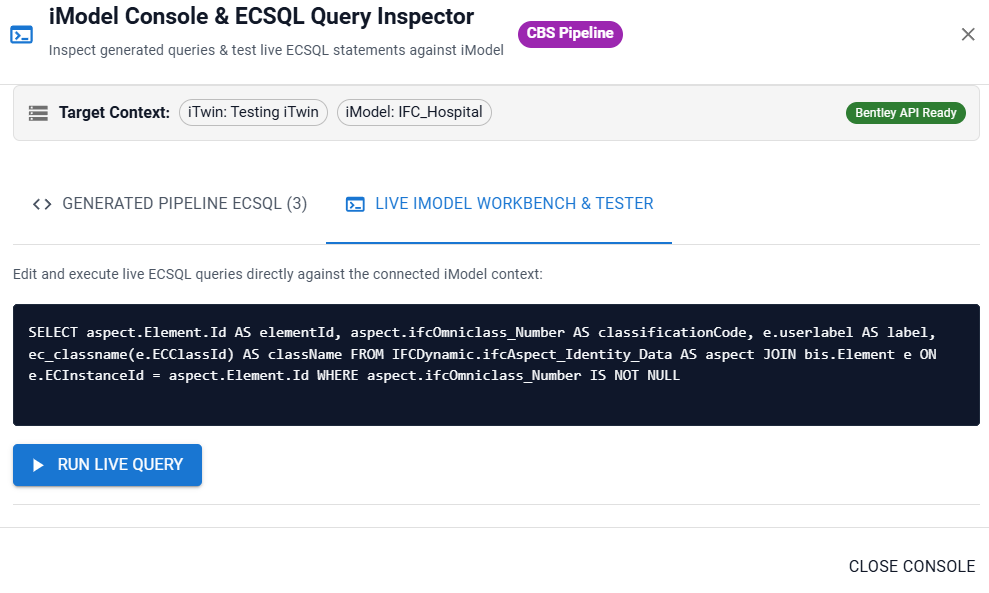
- ECSQL Editor: Enter or edit any valid ECSQL statement (e.g.
SELECT ECInstanceId, UserLabel FROM bis.Element LIMIT 25). - Run Live Query: Select Run Live Query to dispatch the query directly to the iModel query engine.
- Execution Metrics: View real-time query execution duration in milliseconds (e.g.
Executed in 142ms). - Interactive Results Grid: Inspect returned records in a sticky-header data table with column headers, formatted cell values, and null indicators.
- Error Diagnostics: If ECSQL syntax or schema errors occur, a clear error banner displays the detailed message returned by the Bentley iModel engine.
[!TIP] Use the Live iModel Workbench to verify that target ECClasses, property names, and relationship joins exist in your specific iModel before running full harvesting extractions.
Troubleshooting
| Symptom | Cause / Remedy |
|---|---|
| Save Configuration button is disabled or missing | Verify that your user account holds the Author entitlement in the current license context. |
| Configuration changes revert after page refresh | Ensure you select Save Configuration before navigating away. Unsaved edits exist only in temporary page state. |
| iModel Console displays "iModel Offline / Standalone" | Ensure an iTwin and iModel are selected in the page context header so Bentley API session tokens can be established. |
Live Workbench query returns ECSQL Execution Error |
Verify that class and property names match the exact case-sensitive schema definitions in the iModel. Use the Generated Pipeline ECSQL tab as a reference. |