Purpose
The Quality tab shows data quality and performance indicators for the selected iModel and lets users author and manage cards and rules that compute those indicators.
Sections
Quality Card
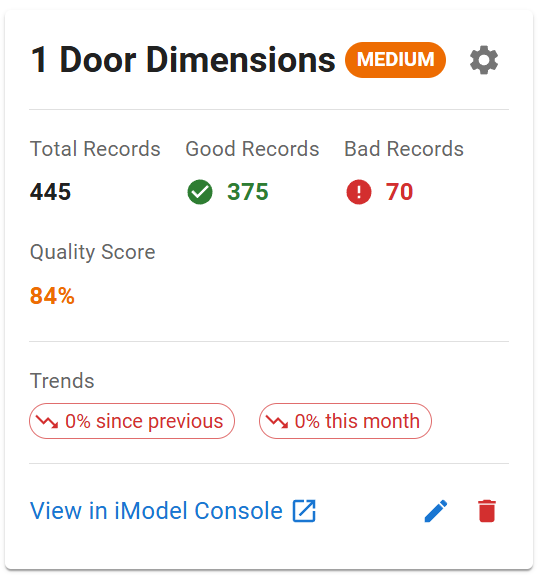
Each card shows the number of groups from the query and the status chip of the query, GOOD / MEDIUM / BAD
This is based upon the number of elements within each group rather the number of good / bad groups ... ie you can have 1 BAD group but if it contains the majority of elements then the card will display BAD.
You can save the information for the iMOdel / Changeset and a Trend chip will display the general trend of the information.
Filter
 The Model Filter allows you to type any string and filter the quality indicators by the model name
If you want to build your own links then use {modelFilter} in the sql for the quality indicator.
If you do not want to relate you indicator to the model, ensure that you have an alias of "ge" in the sql and that "ge" has an ecinstanceId.
The Model Filter allows you to type any string and filter the quality indicators by the model name
If you want to build your own links then use {modelFilter} in the sql for the quality indicator.
If you do not want to relate you indicator to the model, ensure that you have an alias of "ge" in the sql and that "ge" has an ecinstanceId.
You can Apply Filter or Clear Filter
When a filter is applied, viewing the results in imodelconsole will show the results with the model filter applied.
Card & Rule details
Cards and rules are defined by a query.
The query structure must be in the following format
SELECT
  label,
  count(instance) AS elementCount,
  SUM(good) AS goodCount
FROM
  (
    SELECT
      door.ifcpredefinedtype AS label,
      ifnull(door.ecinstanceid, 1) AS instance,
      CASE
        WHEN (overallheight > {minHeight} AND overallwidth > {minWidth}) THEN 1
        ELSE 0
      END AS good
    FROM
      ifcdynamic.ifcdoor door

  )
GROUP BY
  label
The ECQL must have
label: the name for each groupelementCount: the number of elements for each groupgoodCount: the number of good elements for each group which should generally be an aggragated SUM or COUNT from an internal query{parameters}: You can use paramaters which can be delimited by braces {}Enhancements
If the sql has a table alias of "ge" and that has an ecinstanceId, then the modelFilter will be applied to that quality indicator
If you want to build a quality indicator around an aspect then link it back to sis.geometricElement3D ge and the modelFilter will work the same
There are checks to ensure there are the required properties, but if you enter invalid ecSQL, the card will not work. Please check your ecSQL returns valid results with imododelconsole.
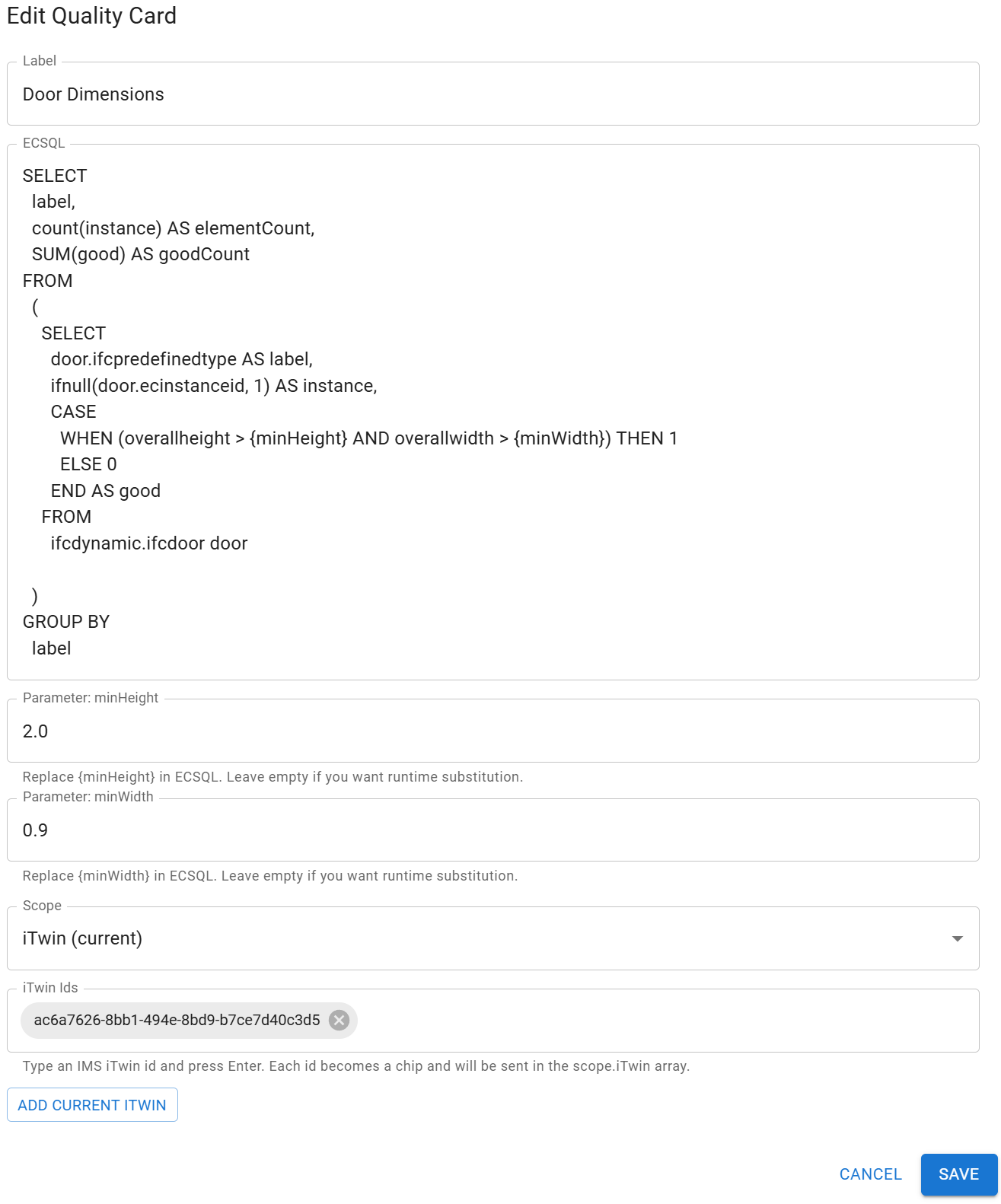
Defaults : If you add a parameter you should set defaults for each and every parameter
Scope : All of the saved data in toolbox is restricted to iTwin scope, our examples are public scope and as such are available across all iTwins.
iTwin scope will restrict the visbility of the quality card to only the scope of the iTwin(s) registered. You can update a card from any iTwin where it is registered, but it will be the same card for all iTwins that are registered.
Domain : If you have a domain license you can register quality information for users with the same domain and also add other domains.
Note users can only access information with a valid IMS login and can only access iTwin scoped quality information when they have access to the specified iTwin.
Doamin scope means any user with an IMS login and is the same domain can access the information across all iTwins they have access to.
Good / Bad chip explanation
The Good/Bad chips shown on cards and indicators are derived from the card's evaluation block. At runtime the indicator computes:
goodCount: number of elements that meet thegoodcriteria.badCount: number of elements classified asbad(or failing checks).totalCount: total elements considered.
The card's severity is computed from its evaluation thresholds and is displayed as the chip (Good, Warning, Bad) along with counts/percentages. The explanations.good / explanations.bad text provides context for the result.
iModel Console integration
For any card or indicator you can click the "View in iModel Console" action. This opens iModel Console in a new tab with a the ECSQL query and the current context (iTwin id, iModel id, changeset id). This is useful to inspect the raw elements or test modified queries. The button is labelled with the iModel Console icon and opens a new tab.
Trend snapshots
When you save a snapshot the app stores goodValue, badValue, totalValue and a score for each card. Trend widgets use fields such as increaseFromPrevious and increaseThisMonth to show short-term movement.
Placeholders for screenshots:
Notes
- Card definitions can only be stored server-side (toolbox). The UI supports creating and deleting user card configs from the Quality tab.
- The "Creating your first rule" walkthrough demonstrates the complete flow from rule authoring to running a validation and saving a snapshot.