Construction Integration
This page describes how the Toolbox integrates with a Construction ERP system to publish projects, BoQs (Bill of Quantities) and templates, and how the mapping/ignore/error settings affect the Construction Index.
Note: link references to the external Construction ERP documentation are used so the source of truth stays up to date. Replace the example link below with your vendor's documentation URL.
Creating a profile
- Open the Toolbox application and go to the Integrations or Settings area.
- Choose Construction ERP and select Create Profile.
- Provide the endpoint URL for your Construction ERP, an API key or credentials as required, and a friendly profile name (for example,
Acme Construction ERP). - Test the connection and save the profile.
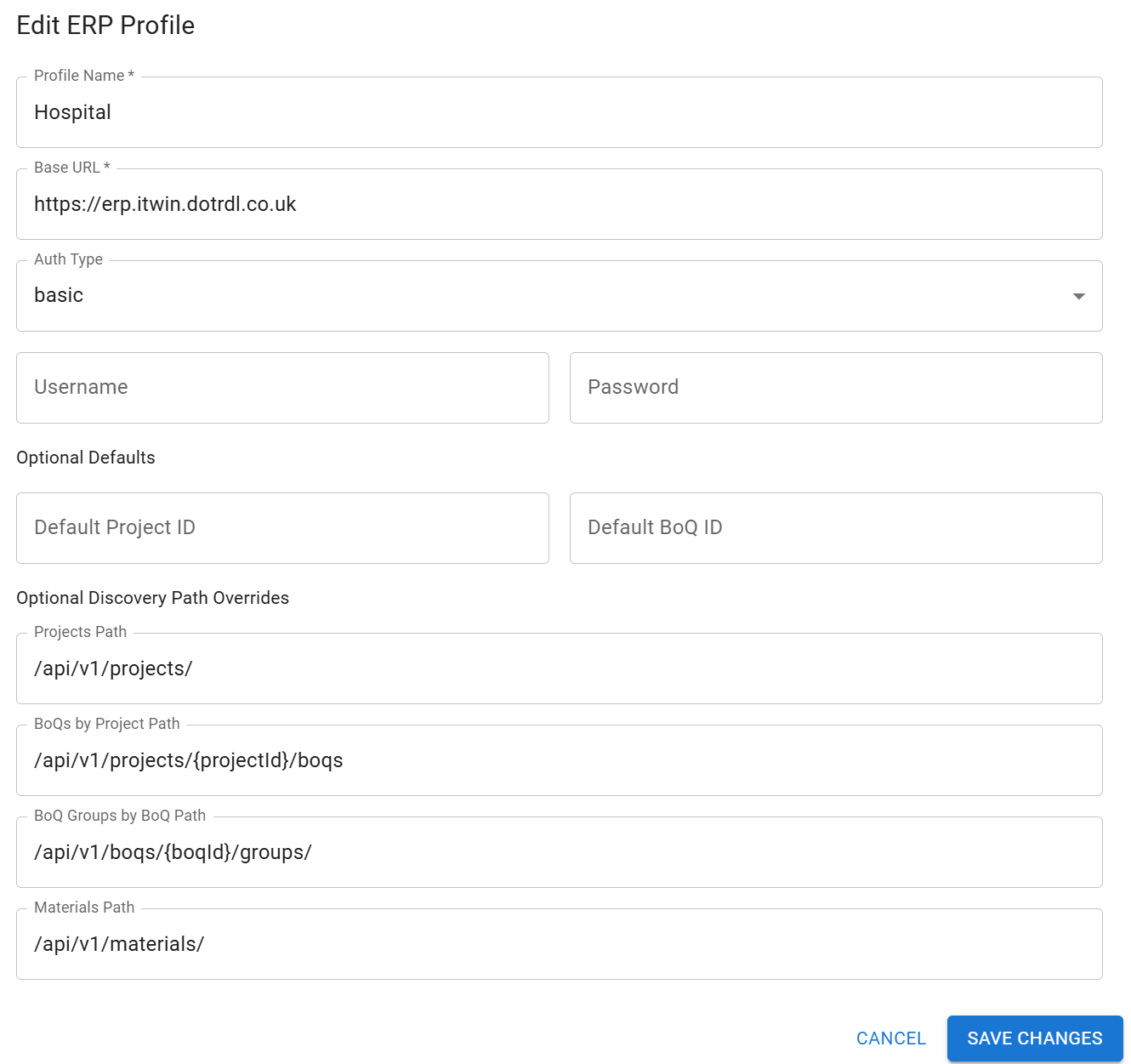
Note : Authentication can be via a Bearer token / api-key or basic user / password.
If user / password then all for the erp actions will be tracked under the same logon
How to create a Project and BoQ in Construction ERP
The Toolbox does not duplicate project creation logic — it publishes the project and associated BoQ to the Construction ERP using the profile you created.
- For detailed, vendor-specific steps to create projects and BoQs within your ERP, see the Construction ERP documentation: Construction ERP docs
- The toolbox app will only publish to an existing Project and existing BoQ.
Templates — how they work and how to edit them
Templates define the structure and default mappings used when creating or publishing BoQs and projects. A template typically includes:
- Field mappings (Toolbox field → ERP field)
- Default project metadata (project type, location, client)
- Item templates for common BoQ entries
To edit a template:
- Open the Templates view in the Toolbox.
- Select a template and click Edit.
- Modify mappings or default values. Save as a new version if you want to preserve the previous template.
Templates are applied at publish time. If a template is updated after a BoQ was published, re-publishing the BoQ will apply the new template only if you choose to overwrite existing ERP records.
Ignore / Error / Map
The import pipeline applies one of three actions for each BoQ item or mapped field:
- Ignore: The item or field is skipped during publish. Use ignore when data is irrelevant or intentionally omitted.
- Error: An error indicates that all elements for the corresponding class/ category are in error and as such should be repaired at source. The error elements will not be sent to construction ERP but will reduce the Construction Index.
- Map: The item or field is transformed and mapped to the target ERP field according to the mapping rules.
How each affects the Construction Index:
- Ignore: skipped items do not appear in the Construction Index and are not counted toward totals. Use this for non-billable or temporary items.
- Error: items flagged as errors are excluded from the published dataset until fixed; they are recorded in the import log and will affect the Index by reducing completeness and requiring manual intervention.
- Map: mapped items are included in the Construction Index and contribute to totals, quantities, and aggregated metrics according to their mapped ERP fields.
Mapping Rules
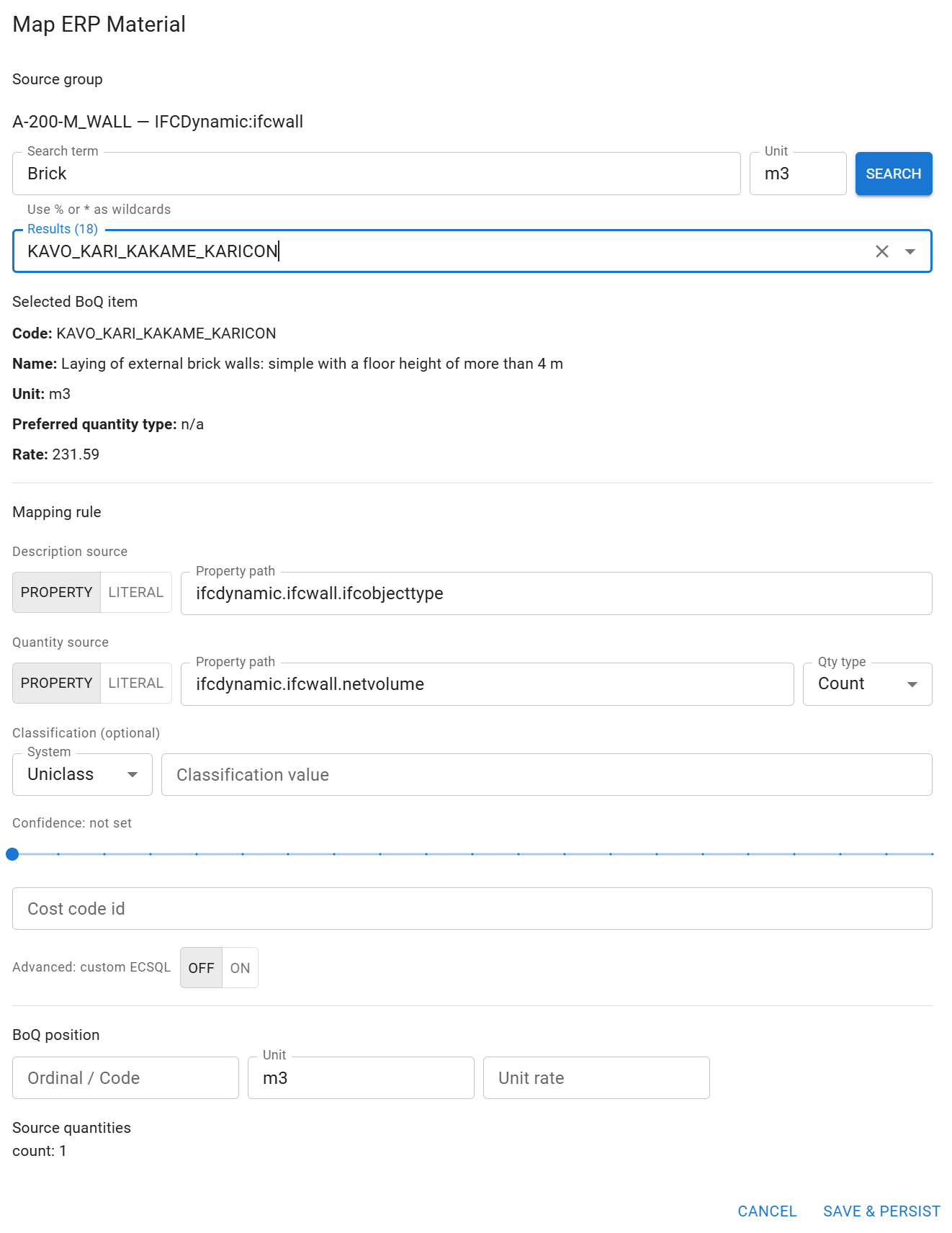
When mapping a category / class the following process should be followed
- Enter the search criteria and unit to populate the Results. If there are no results then the elements cannot be mapped
- When editing a mapping the code will be shown which can be used to find the same element, note the Code, Name, Unit and Rate should all be displayed for a valid mapping
- Enter the property path for
description/quantityand optionallyclassification. Ensure the Quantity Type is the same type as the Unit egVolumeform3or100 m3
- this is a fully qualified property name
schema.class.property descriptionconsider this to be theGROUP BYclause in the resulting ecSQL
Set the maximum
confidencethis will be used as the baseline for each corresponding row.Refer to the annex below for details on how to build an ecSQL to populate the
descriptionandquantity
Publish into Construction ERP
To publish:
- Select the Project and BoQ in Toolbox.
- Confirm the target profile (Construction ERP profile) and template version.
- Review the preview of mapped items — resolve any errors or adjust ignores/mappings.
- Click Publish → Construction ERP.
After publish, review the publish log for success, warnings, or errors. Successful publishes will update the Construction Index and create/modify the corresponding project and BoQ in the ERP.
Custom ecSQL Mapping
SELECT
  ifcmain.ifcobjecttype || '-' || asp1.ifcsize AS description,
  SUM(asp1.ifclength) AS quantity,
  'length' AS quantityType,
  'm' AS unit,
  COUNT(*) AS recordCount,
  SUM(
    CASE
        WHEN asp1.ifclength IS NOT NULL THEN 1
        ELSE 0
    END
    ) AS nonNullCount,
    (CAST(
        SUM(
            CASE
                WHEN asp1.ifclength IS NOT NULL THEN 1
                ELSE 0
            END) AS REAL) / CAST(COUNT(*) AS REAL) * 0.9) AS adjustedConfidence
FROM
    IFCDynamic.ifcpipesegment ifcmain
LEFT JOIN bis.Category cat ON cat.ECInstanceId = ifcmain.Category.Id
LEFT JOIN ifcdynamic.ifcAspect_Dimensions asp1 ON asp1.Element.Id = ifcmain.ECInstanceId
WHERE
  ifnull(cat.UserLabel, cat.CodeValue) = 'M-590-M_PIPEWORK'
GROUP BY
    ifcmain.ifcobjecttype, asp1.ifcsize
ORDER BY
    quantity DESC
description: should be a text field and is generally the grouping criteriaquantity: will be used as the quantity and must be a numberquantityType: should be a standard quantity type, length / area / volume / weight etcunit: should be a unit which is aligned with the mapped openconstruction coderecordCount: the number of records which will be used to construct the indexadjustedConfidence: used by Open Construction to determine the confidence of BoQ record